
Most phone videos are too long, have nothing written on them, and were filmed at the wrong time of day. chatmodel’s video editor fixes all three, right where you make videos.
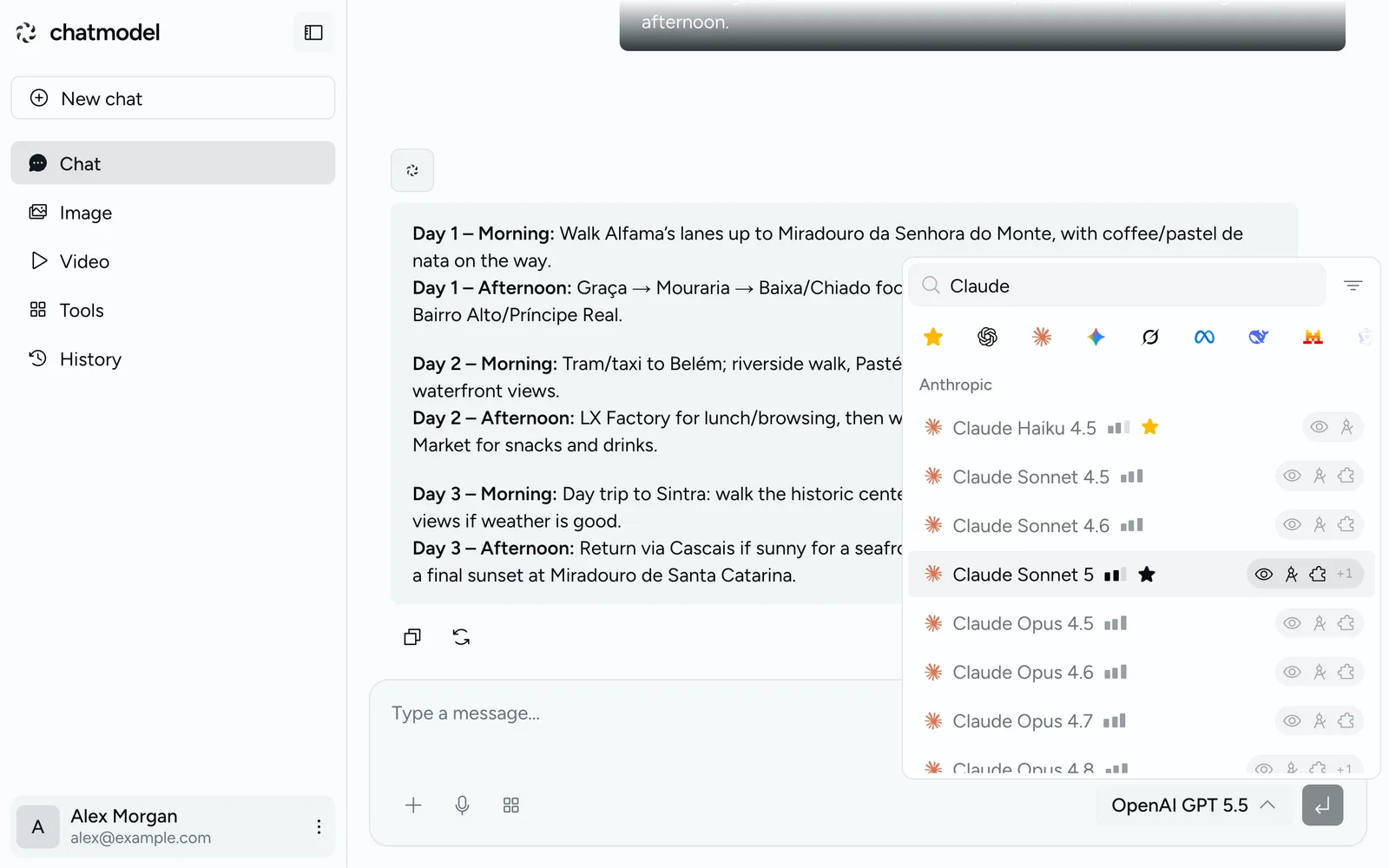
Open the AI video editor
- Go to Video and choose Edit, next to Create and Motion. The button at the top of this page opens it directly.
- Press Upload a video to edit and choose your clip: MP4 or MOV, up to 15 MB.
The clip appears with a timeline underneath: a strip of little frames you can play, pause and scrub through.
How to trim a video
Drag the two ends of the timeline, Trim start and Trim end, to where the good part begins and ends. Press play to check, then Trim clip.
Trimming is also how you make a big clip fit: if it’s still over 15 MB, the editor tells you to cut it shorter.
How to add captions to a video
- Press Show captions on the timeline. A captions lane opens under the frames.
- Double-click where a caption should start and type it, or use Add a caption here.
- Drag the ends of the caption to choose how long it stays on screen.
- Add as many as you need, then press Burn captions into the clip.
“Burning” means the words become part of the video, so they show everywhere: WhatsApp, Instagram, a TV.
How to change a video with AI
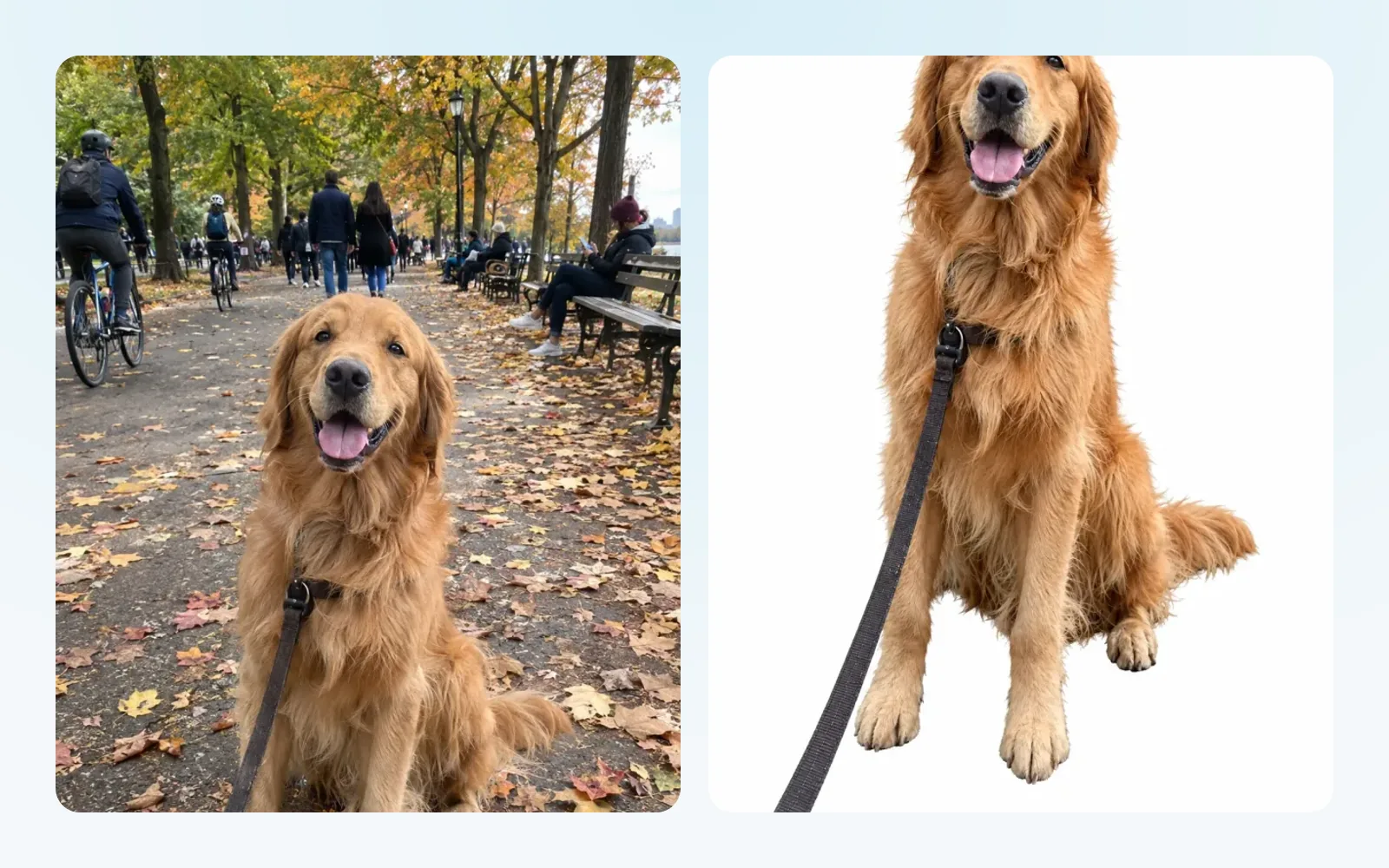
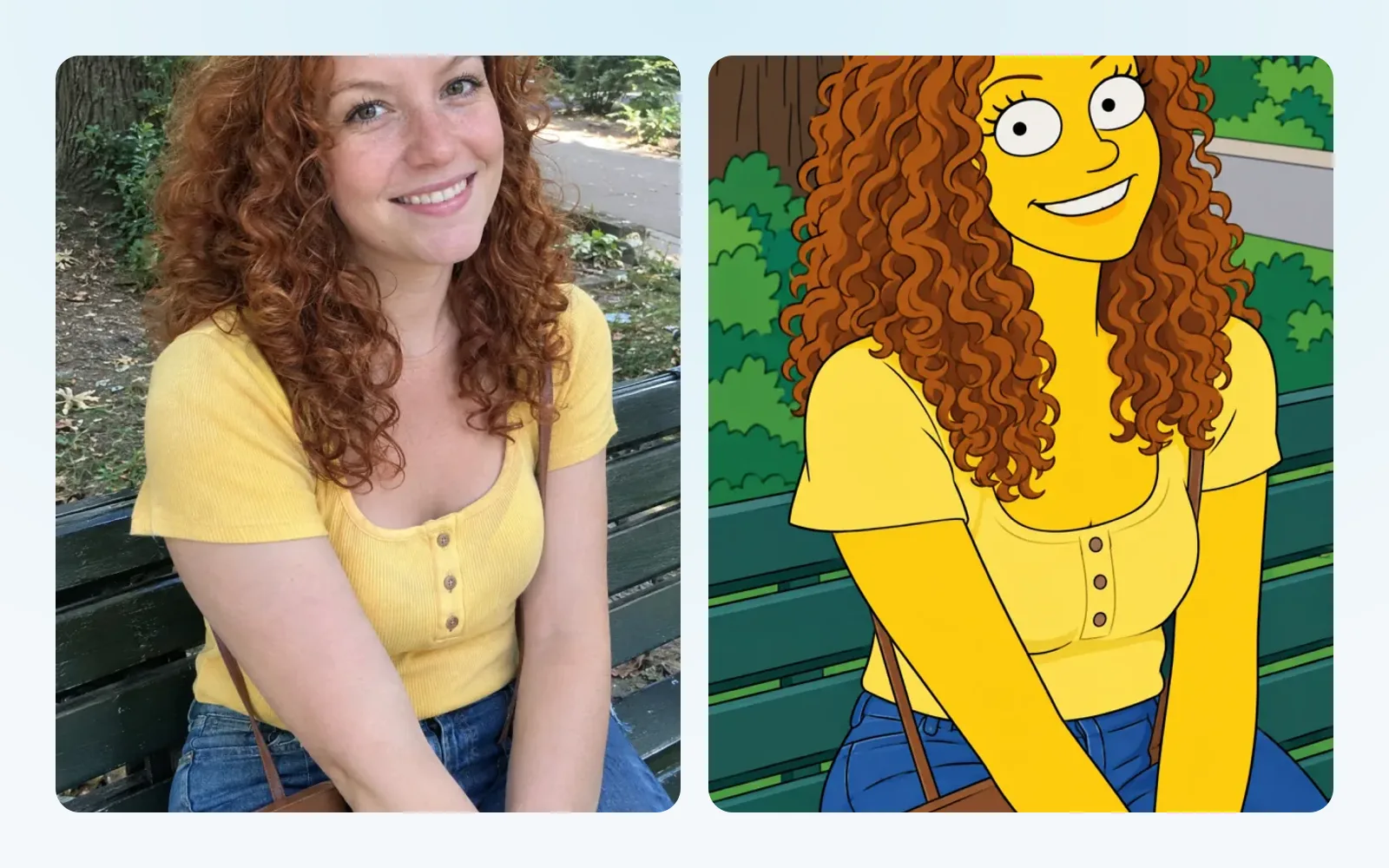
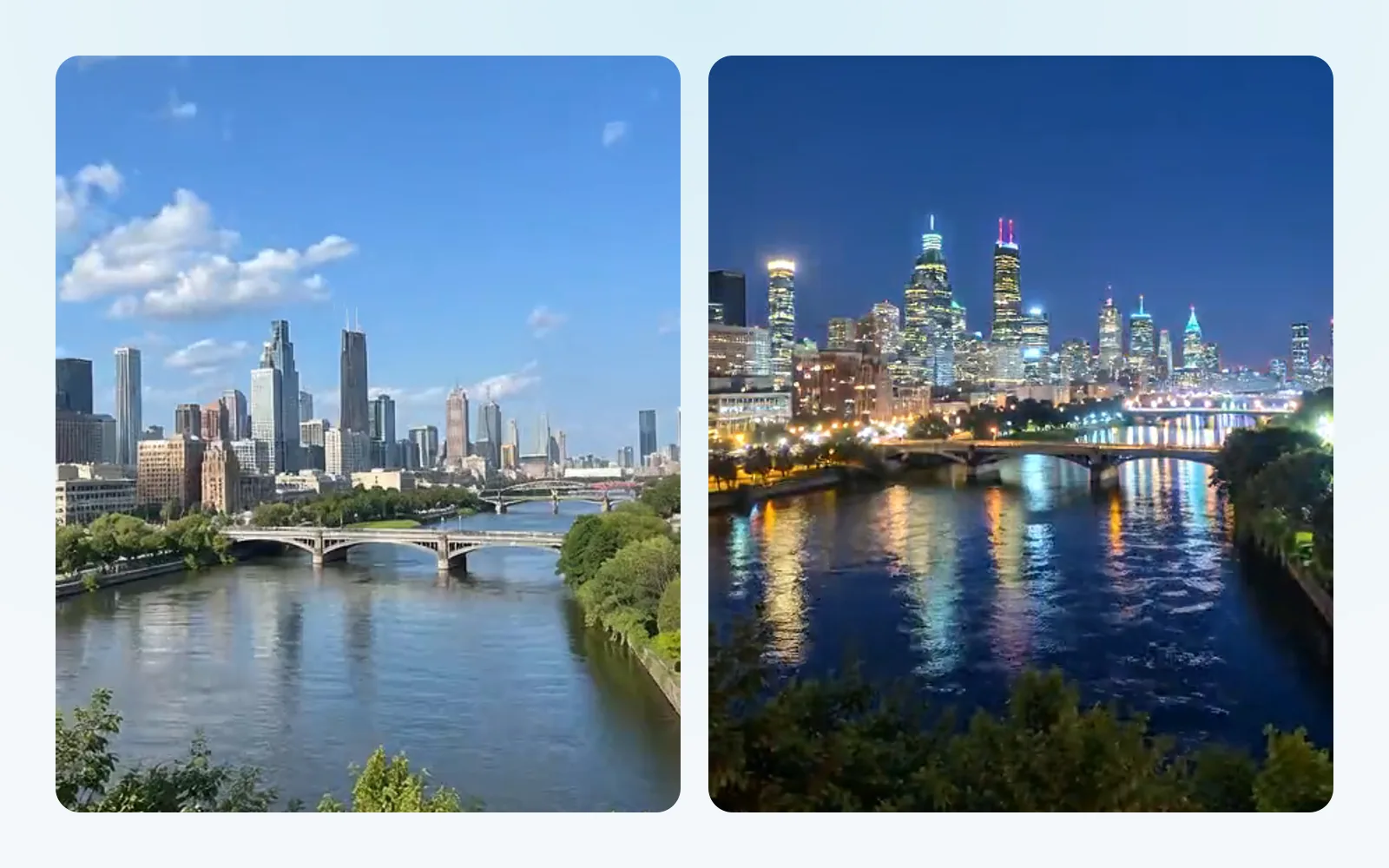
The part a normal video app can’t do. With your clip in the editor, type what should change and send it. Grok Imagine Video makes a new version with that change and keeps the rest as close to the original as it can. This one counts as a video in your plan.
A few changes to try:
Works well
- One change at a time: *make it night*
- Say what should stay: *keep the people and the camera move the same*
- Trim first, then change: short clips change best
- Keep the original if the sound matters
Avoid
- Three changes in one line: *night, snow and a red car*
- Sending a long clip and hoping for the best
- Expecting the sound to survive (the new clip is silent)
If it doesn't come out right
- My file was refused
- It's over 15 MB, or not MP4/MOV. Trim it shorter first.
- The AI changed too much
- Ask for one change and add what should stay the same.
- The new clip has no sound
- AI-changed clips are silent. If the sound matters, keep the original too and only trim and caption it.
- Captions don't show when I share it
- You need to press Burn captions into the clip before you download.
When you’re happy, press the download button on the timeline, ready to share.
Video editing ideas
To make a video from a photo instead, see turn a photo into a video. For one-click effects on holiday photos, see make a drone video from a photo.