
You came back with hundreds of photos and nobody looks at them. Pick the best wide one and turn it into a drone flight.
How to make a drone video from a photo
- Go to Video and open the Presets tab.
- Choose Camera & effects and press Drone Shot.
- Drop your photo where it says Drop your image here, or click there to pick it.
- It starts as soon as the photo is in. Videos take longer than pictures, so give it a few minutes, then press play.
The camera rises and shows the scene from above, as if a drone had been there. It works best with a wide photo: a coastline, a valley, a viewpoint over a city.
More camera moves for a travel photo
All of these live in Video → Presets → Camera & effects, and work the same way: press the effect instead of Drone Shot. On a computer, point at a clip to see it play; press it to open that preset.
- Drone Shot The camera flies up and reveals the scene from above. Use this preset
- Day to Night A timelapse that takes your scene from day to night. Use this preset
- Tiny World in a Bottle Your scene becomes a living miniature world in a bottle. Use this preset
- Earth Zoom Out From your photo all the way out to planet Earth. Use this preset
- 360 Orbit The camera circles all the way around you. Use this preset
- Eye Macro Zoom The camera dives into your eye until the iris fills the frame. Use this preset
Which travel photo works for each move
The same photo won’t suit every effect. Match them:
Works well
- Wide shots for Drone Shot and Earth Zoom Out: a coastline, a valley, a viewpoint
- Daylight photos for Day to Night (the AI does the evening)
- One person in the centre for 360 Orbit
- A clear subject: a skyline, a monument, a harbour
Avoid
- A street full of people and signs (too much to move)
- A photo already taken at night for Day to Night
- Close-ups of a plate of food for a drone flight
- Blurry or very dark photos
How to fix a grey sky first
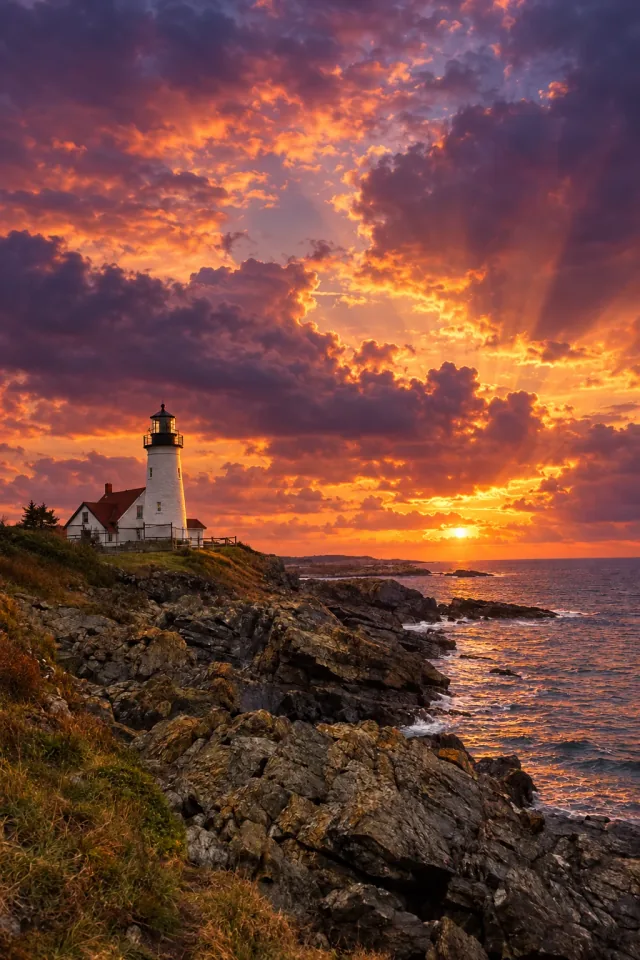
Some of the best places were photographed on the worst day. In Image → Presets → Edit image, three presets change the light and the weather and keep the place.
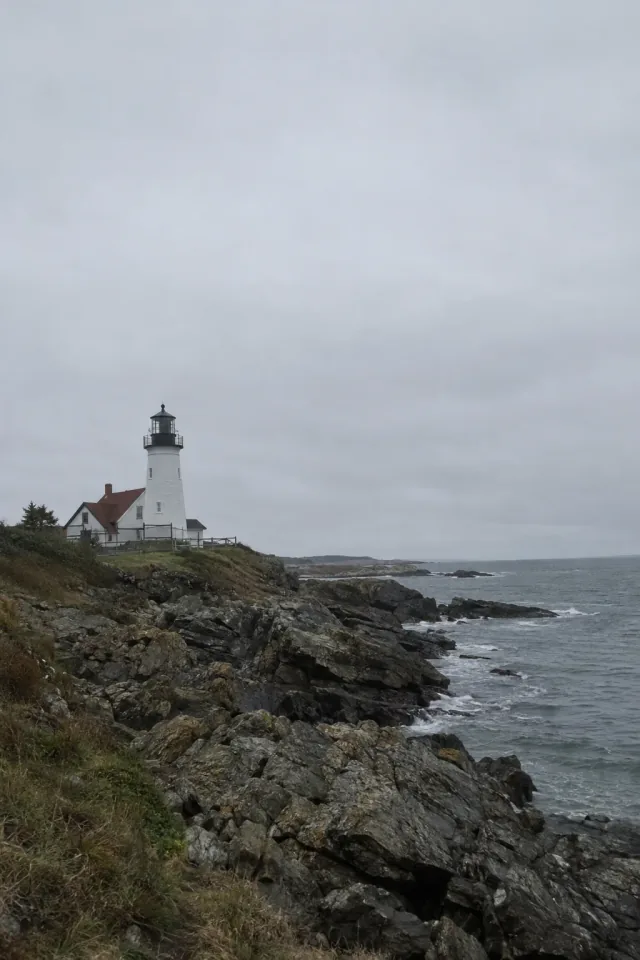 Your photo
 In chatmodel
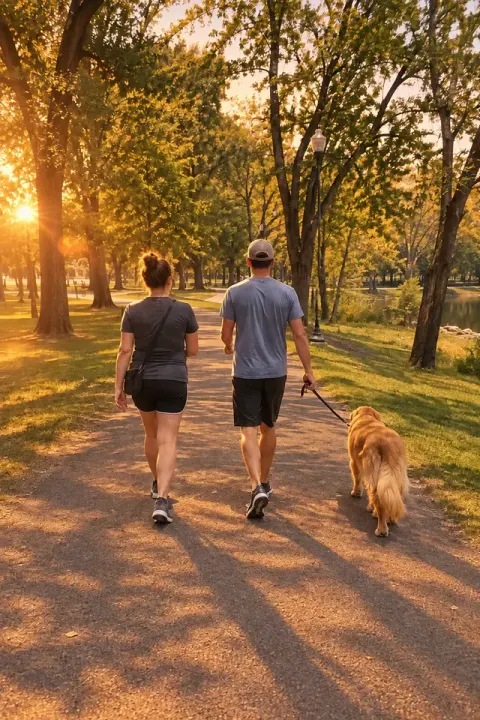
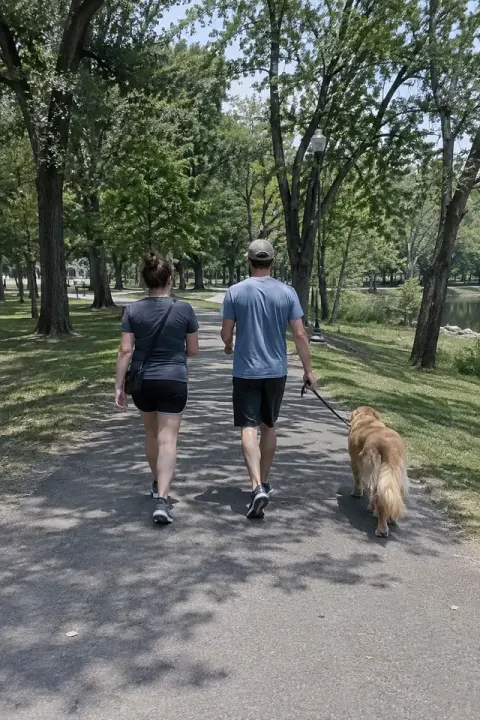
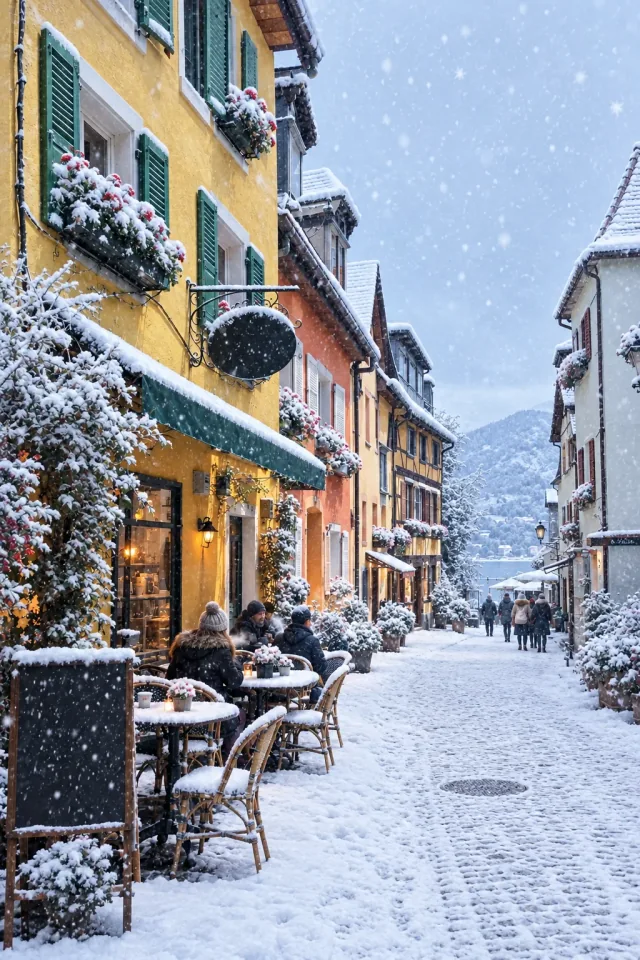
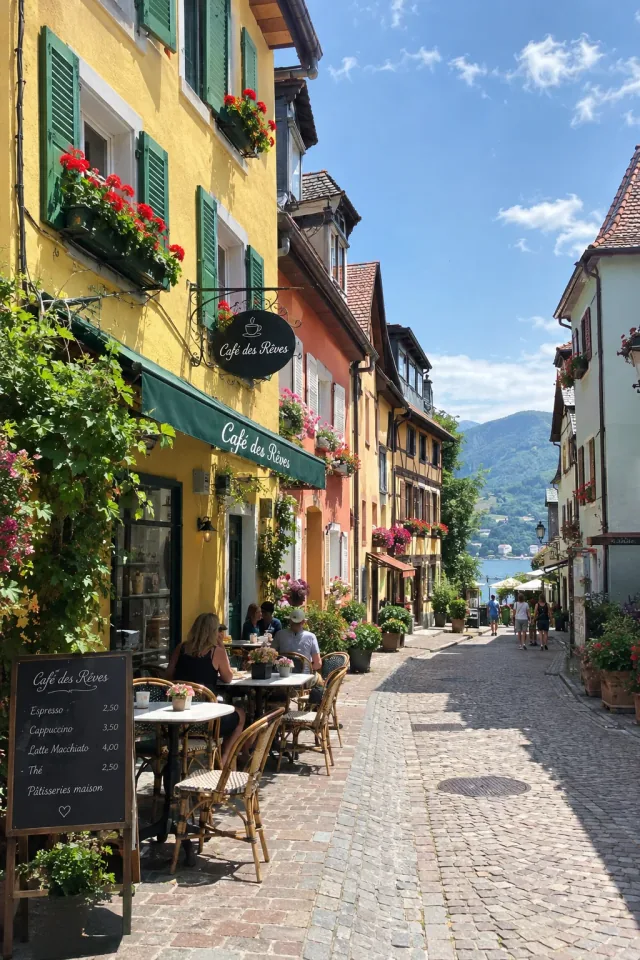
- Golden Hour relights the photo with warm, low sunset light.
- Dramatic Sky swaps a dull sky for a dramatic, cinematic one.
- Winter Wonderland turns the scene into a snowy winter day.
How to make a travel poster for the wall
In Image → Presets → Posters, Threadline Memory turns a trip photo into a two-layer poster: you as a white silhouette, and a hand-stitched red line tying the places together. Made to be printed and framed.
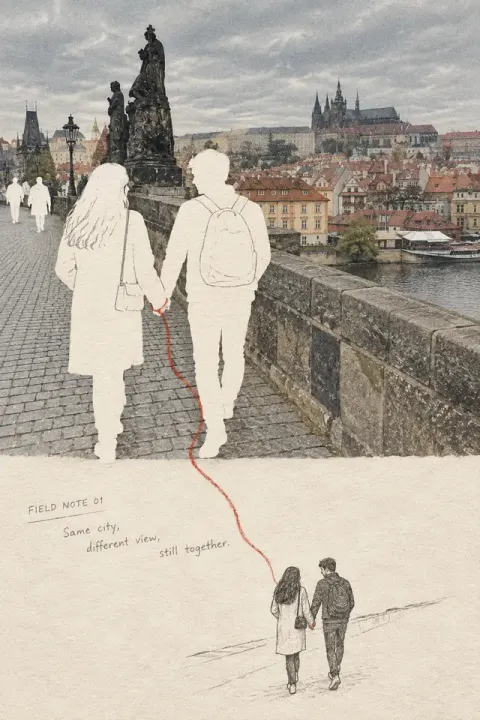
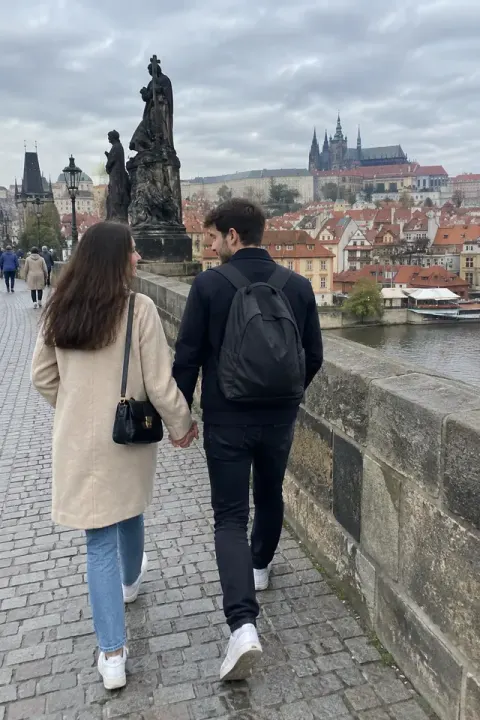
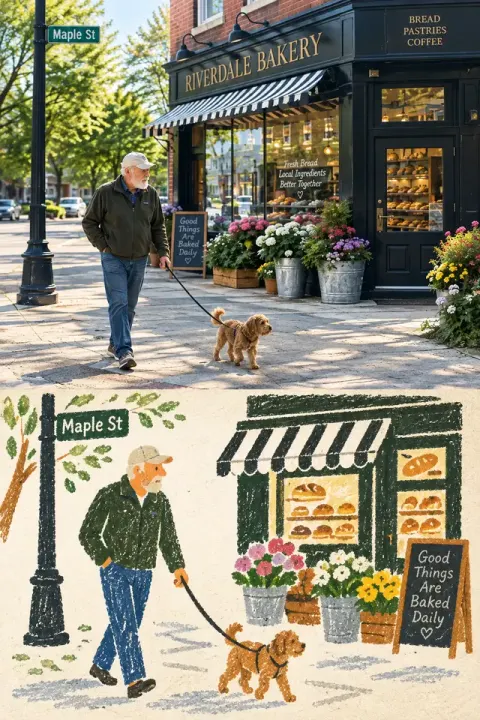
More styles in posters and wallpapers from your photos.
Travel video ideas
If it doesn't come out right
- A sign or a statue looks different
- Small details can change. Look before you share, and try a wider photo where they matter less.
- The video moves too much
- The photo is too busy. Pick one with a clear subject and some empty sky.
- 360 Orbit lost the person
- Use a photo with one person standing in the middle, whole body in the frame.
- It has no sound
- These clips come out silent. Add music in the app you share them from.
Clips are made with Grok Imagine Video. To make a photo move in your own words (the waves, the clouds, someone waving), see turn a photo into a video.