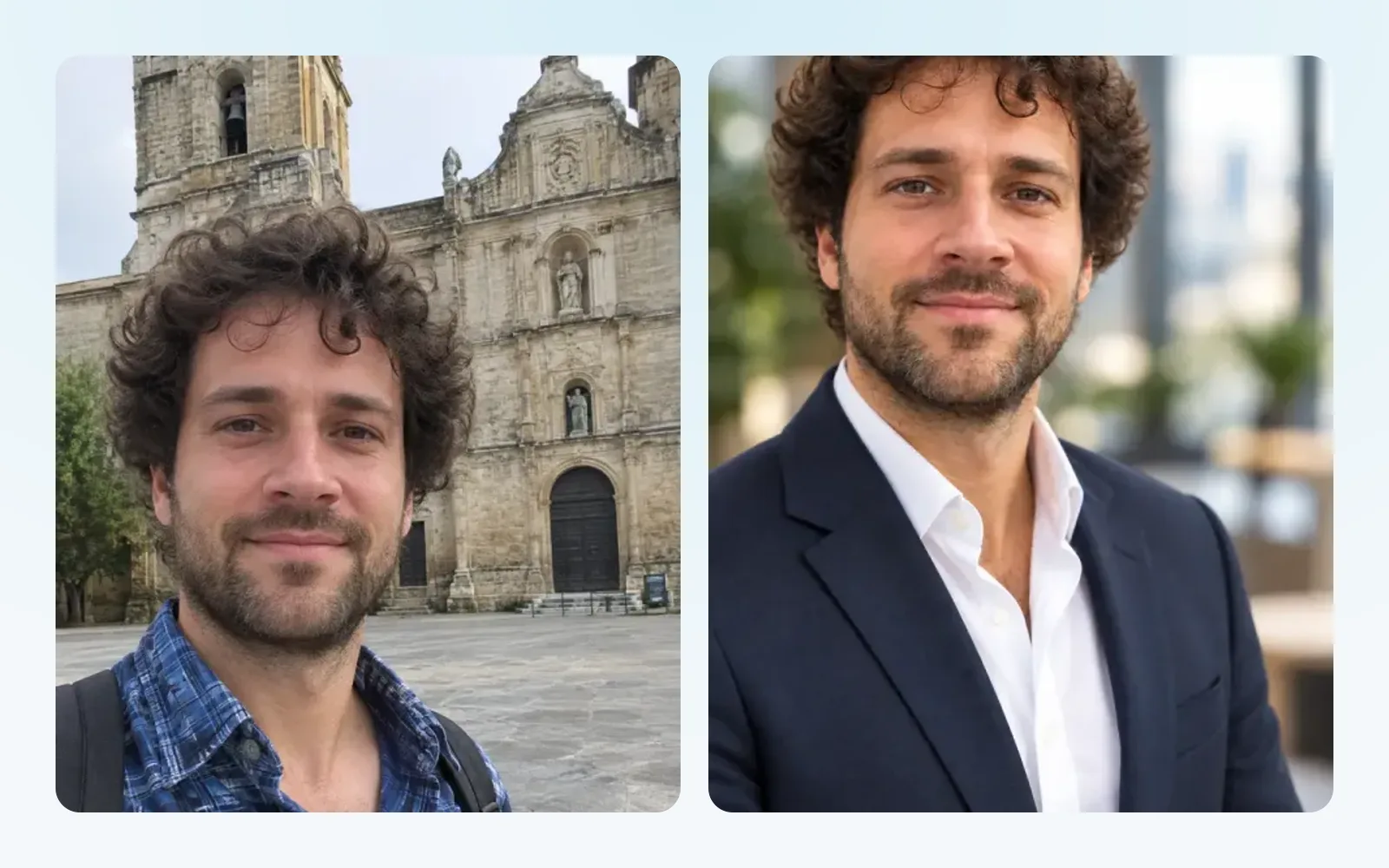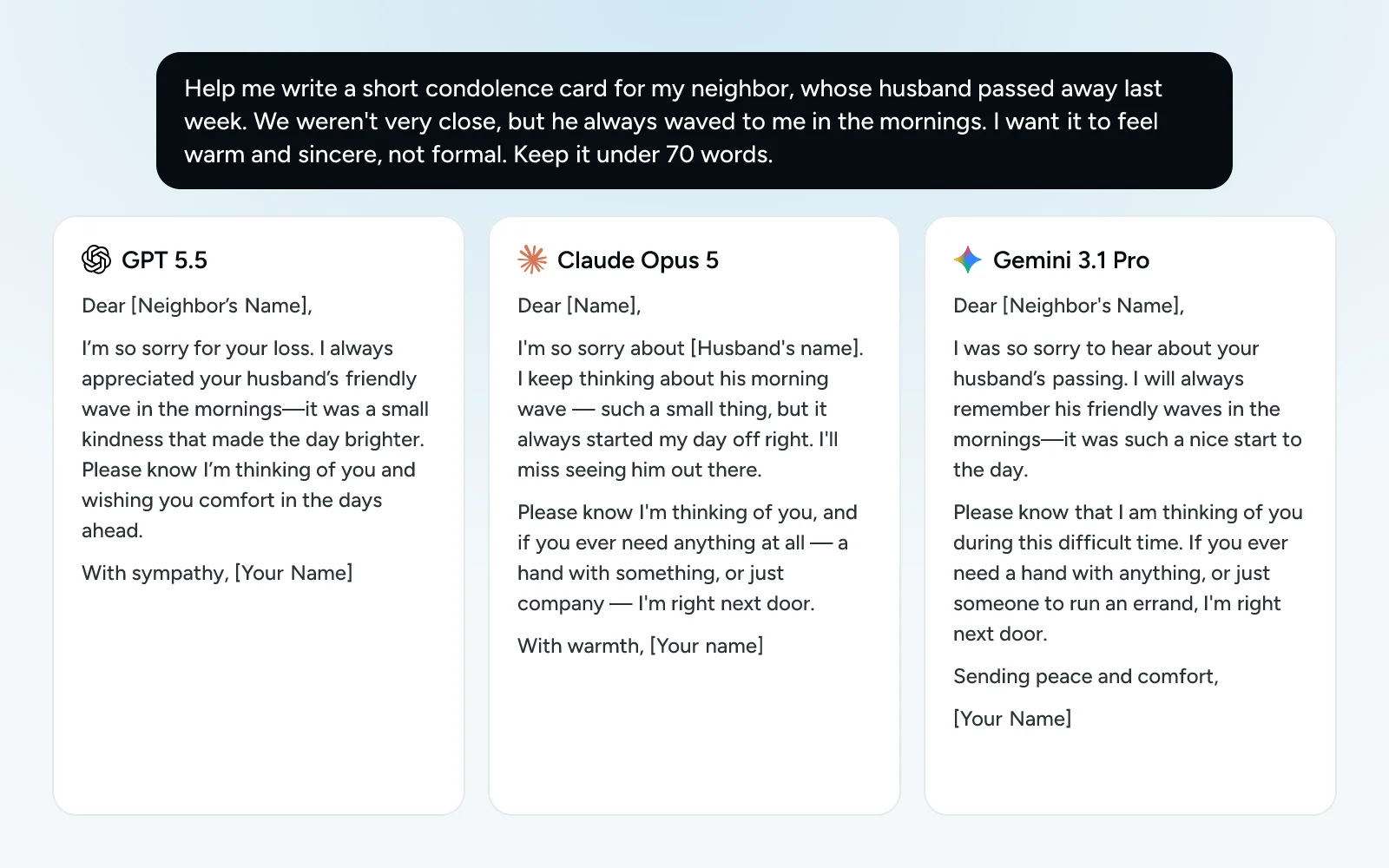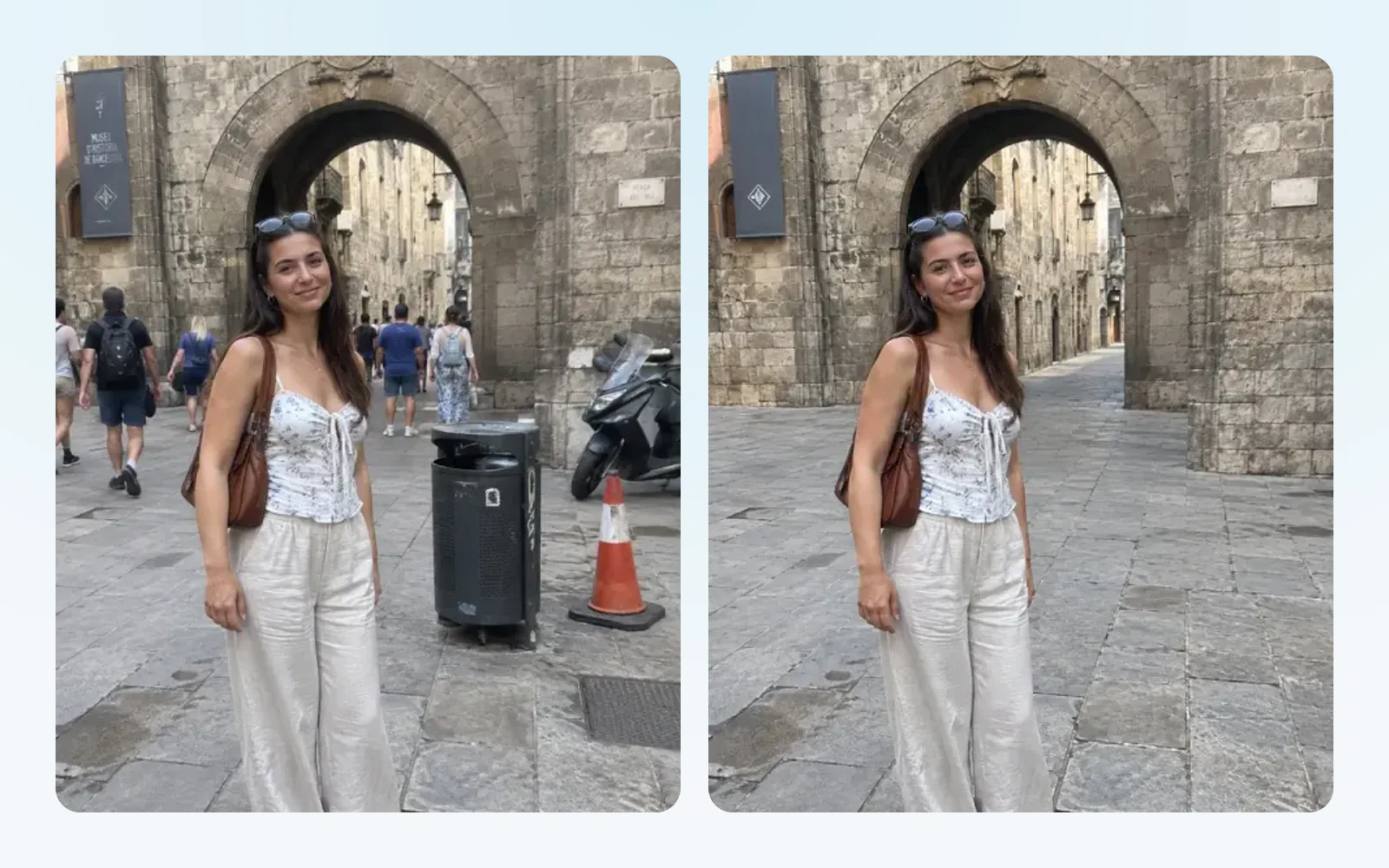

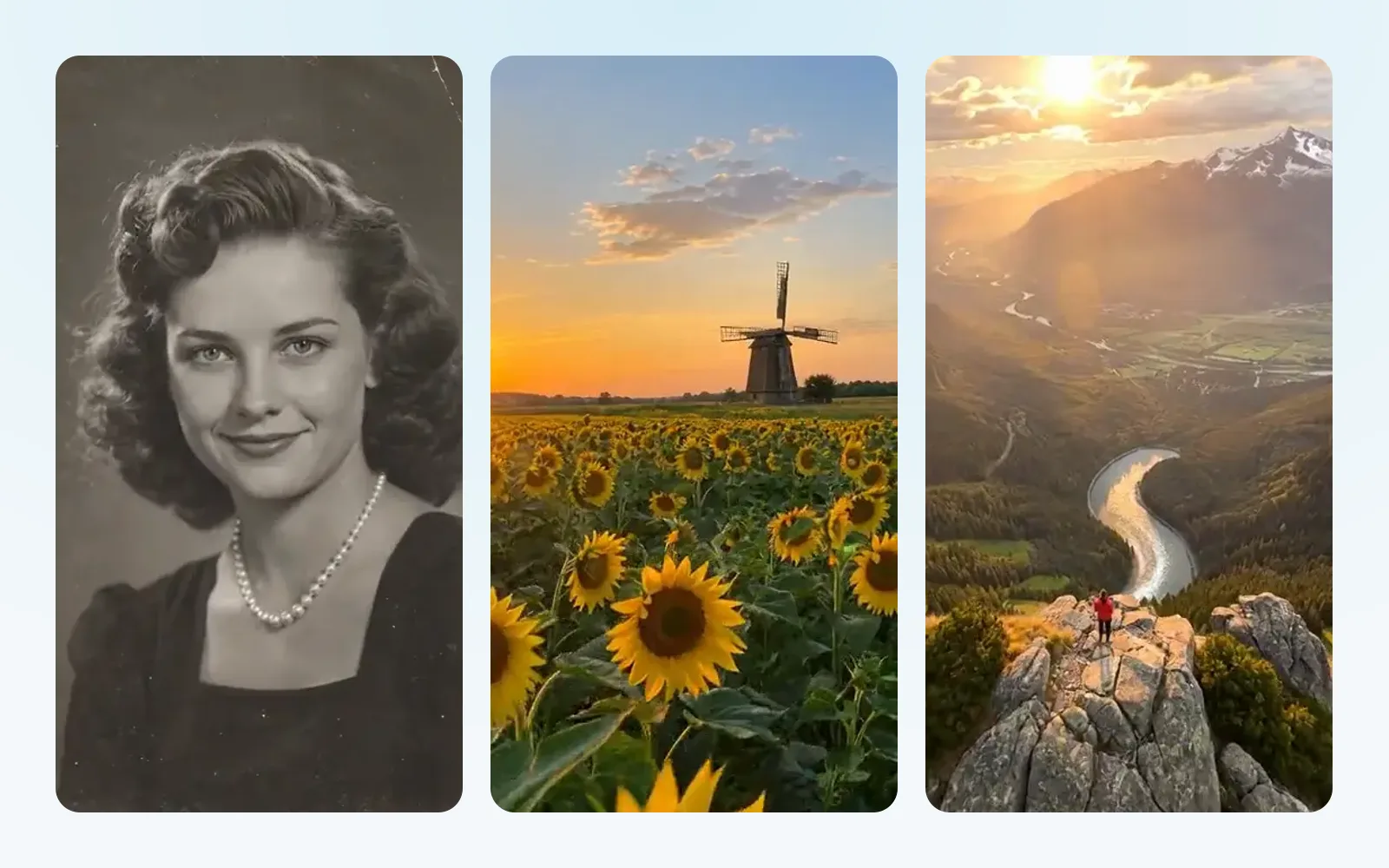
A photo freezes a moment. A few seconds of movement can bring it back: a smile, wind in the trees, the sea. This is one of the things AI does surprisingly well, and you don’t need any video skills for it.
How to make a video from a photo
- In chatmodel, go to Video. Stay on Create.
- Add your photo as the Starting image.
- Describe what should happen in the box that says Describe the video you want to create… Keep it simple: who moves, how, and how fast.
- Open Video settings if you want to change the Aspect ratio, the Duration or the Resolution.
- Send it, and wait a little: videos take longer than pictures.
You can also add an Ending image. The video then travels from the first picture to the second, which is lovely for a “then and now”.
The one-click way: presets
In the Presets tab of Video there are ready-made recipes. You add your photo and press Generate:
- Old photo animation: gentle blinks and a hint of a smile for an old portrait.
- Image to video: turns any picture into a short cinematic clip.
- Drone Shot: the camera flies up and shows the scene from above.
The three pictures at the top of this page are from those three presets.
Which model to choose
| Model | How long | Sound | Good for |
|---|---|---|---|
| Grok Imagine Video (the default) | 1 to 15 seconds | No | Quick, everyday clips |
| Veo 3.1 | 4, 6 or 8 seconds | Yes | Short clips with natural sound |
| Kling V3.0 | 3 to 15 seconds | Yes | Longer clips with sound |
If a model supports sound, Video settings shows Audio, with Auto, ON and OFF.
How to describe the movement
- Small movements look best. A blink, a smile, leaves in the wind. Big actions (someone running, dancing) are harder and can look strange.
- Say how fast. “Slowly”, “gently” and “calm” give smoother videos.
- Say what should stay the same. “Keep the black and white look”, “the background stays still”.
- One idea per video. For a longer story, make several short clips.
Things to know
- The face can change a little, especially when the person turns their head. If it no longer looks like them, try a smaller movement.
- Some photos are refused. Video models have safety rules, and some don’t accept certain photos of real people.
- Video uses more of your plan than chat or pictures. The Pro plan includes one video a day; the Studio add-on gives you many more. See plans and pricing.
Want to repair the photo first? Restore it with Photo restoration, then bring it to life.