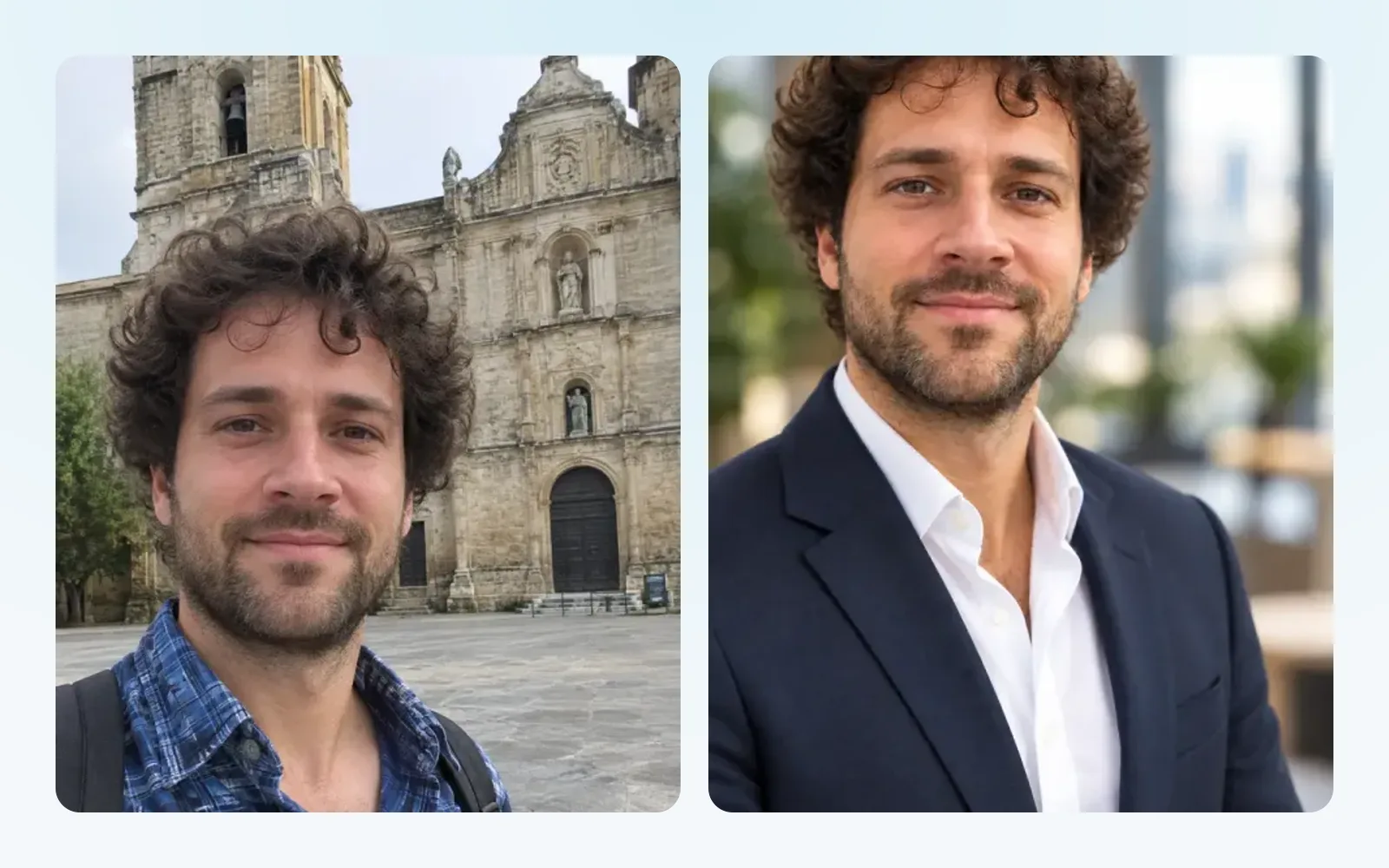

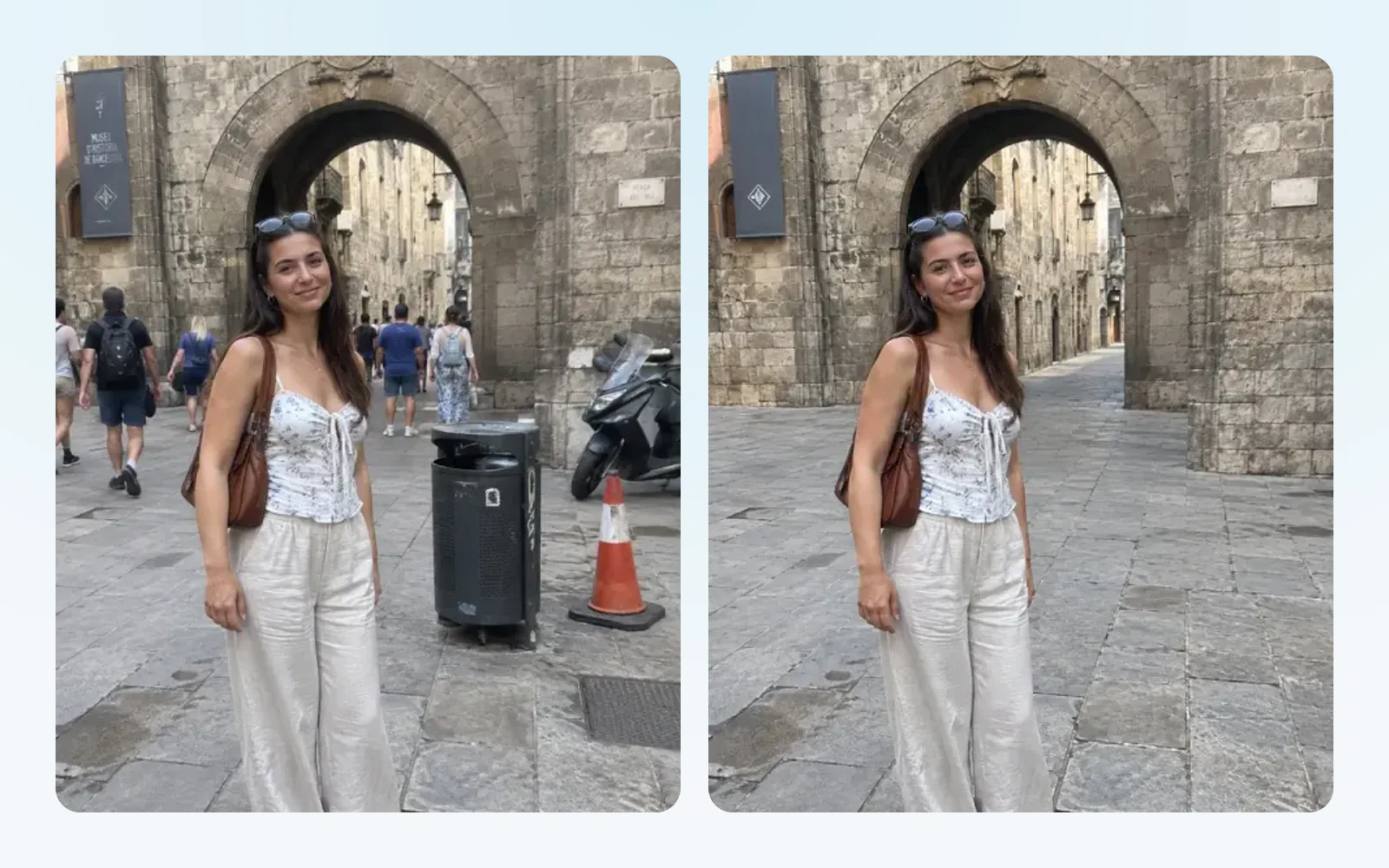
Most photos are almost right. Someone walked into the frame, there’s a bin next to your grandchild, the background is a car park. Fixing that used to need Photoshop and patience. Now you can ask for it.
Way 1: a one-click preset
For the most common fixes, chatmodel has ready-made recipes. You don’t write anything.
- Go to Image and open the Presets tab.
- Choose the Edit image category.
- Pick what you need:
- Remove Object: erases clutter and things you don’t want, like bins, cones or strangers.
- Remove Background: puts your subject on a clean white background.
- Enhance: makes a blurry or small photo sharper and bigger.
- Expand image: adds more scene around the edges, for a wider picture.
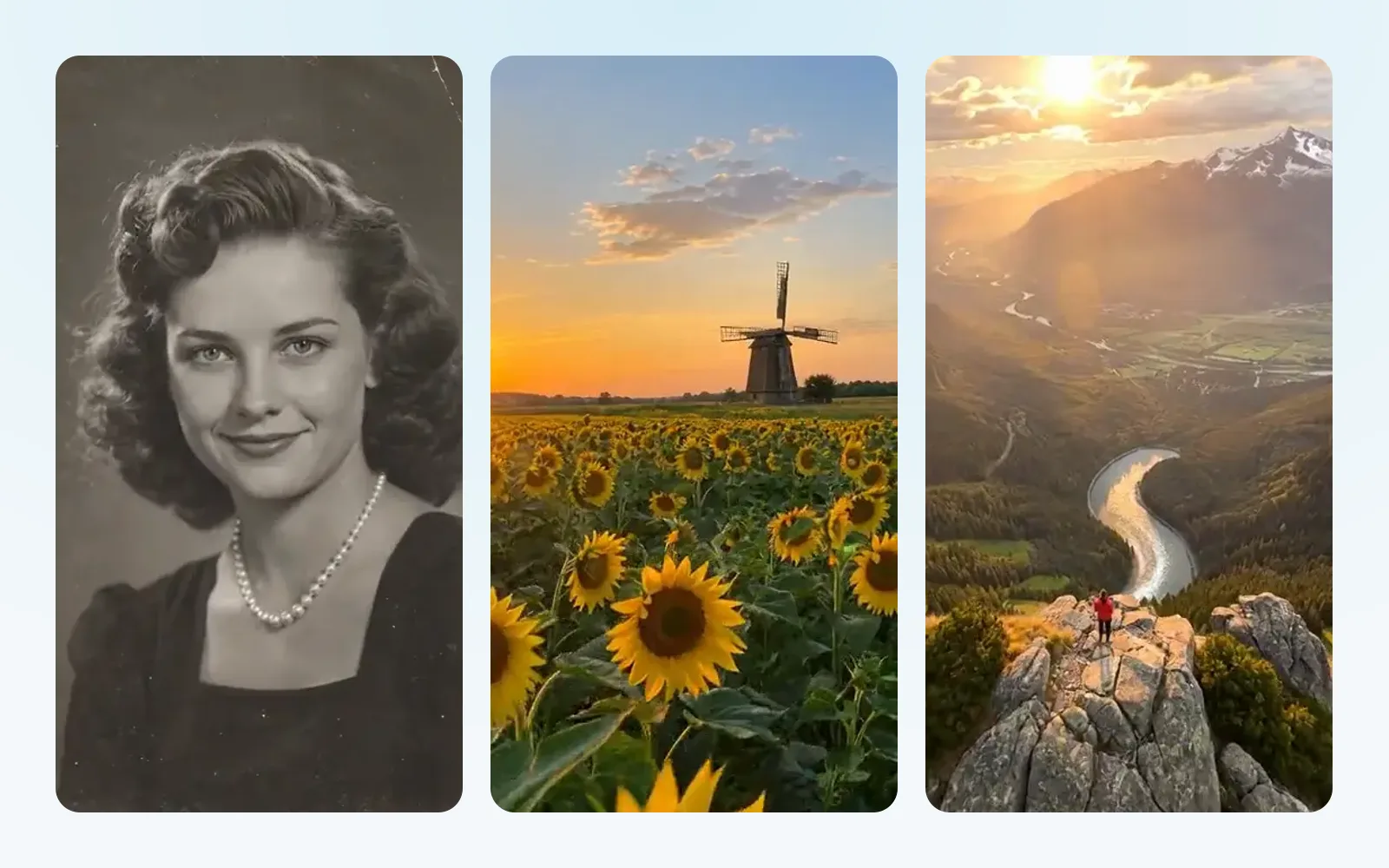
- Photo restoration: repairs and colors old photos (more in how to restore old photos).
- Watermark remover.
- Drop your photo in and press Generate.
The picture at the top of this page was made exactly like this, with Remove Object.
Way 2: say what you want
When there’s no preset for it, say it in your own words.
- Go to Image and switch from Create to Edit.
- Add your photo (up to 15 MB).
- Choose a model that can edit photos, for example GPT Image 2.5 Flare or Nano Banana Pro. When you’re editing, the list only shows the models that can.
- Write the change in the box that says Describe the edit you have in mind… and send it.
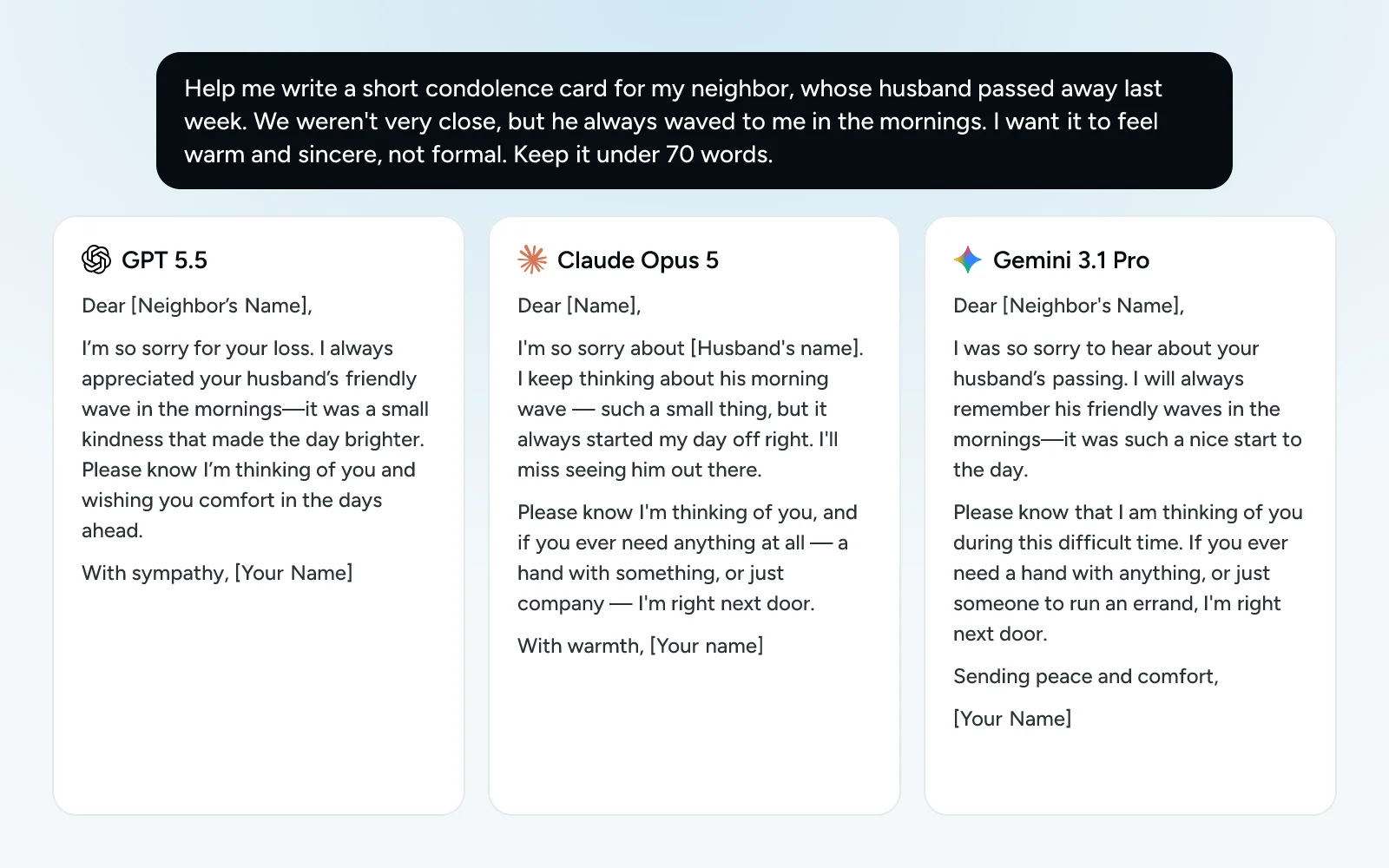
The messages further down this page are good starting points. Press “Try this”, add your photo, and change the details.
How to ask for a good edit
- Say what to change and what to keep. “Remove the cars, keep the house and the trees” works better than “make it nicer”.
- One change at a time. Remove the people first, then change the sky. Each step is easier to check.
- Be specific about where. “The man on the left”, “the cables behind the TV”.
- End with “don’t change anything else”. It really helps.
Check before you share
Zoom in where something was removed. Look for blurry patches, a repeated pattern or a shadow with nothing to cast it. Look at faces and any writing too: they can shift slightly. If something is off, try once more with a more precise message, or switch model.
And be fair with it. Removing a stranger from your holiday photo is fine; changing what a photo shows to mislead someone is not.
What it costs
Editing photos needs the Pro plan, which includes one picture a day. For more, the Studio add-on gives you many more every day. See plans and pricing.