
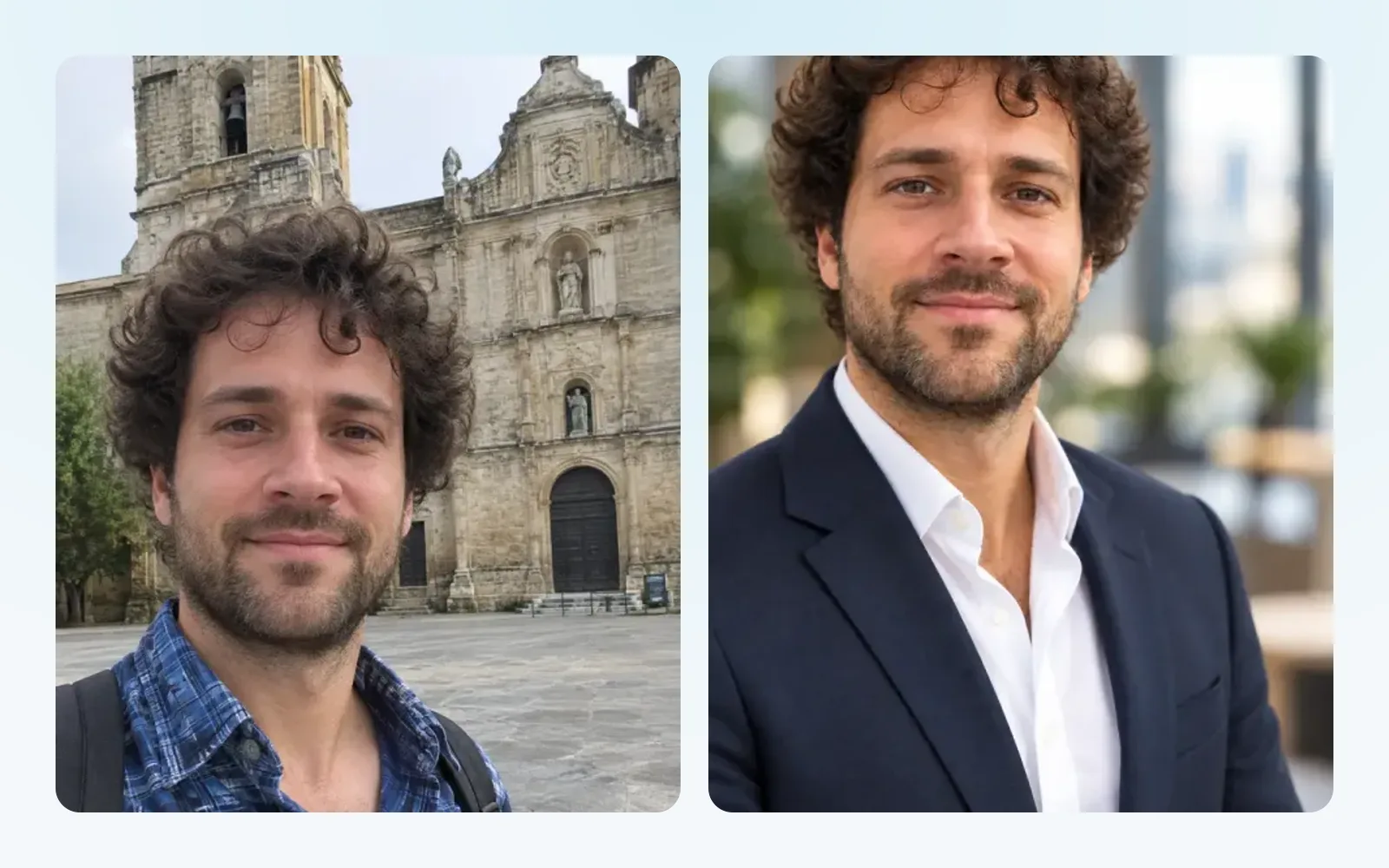
A good headshot opens doors: a LinkedIn profile, a CV, the “about us” page of your business. Booking a photographer for it is a hassle. If you have a decent selfie on your phone, you have enough.
How to make your headshot
- In chatmodel, go to Image and open the Presets tab.
- Choose the Professional category and press Headshot Generator. (The button at the top of this page takes you straight there.)
- Drop your selfie where it says Drop your image here. PNG, JPG, WebP and GIF all work.
- Press Generate.
That’s all. The preset already has the instructions: business clothes, soft studio light, a calm background. You don’t type a description.
Picking the right selfie
The result can only be as good as the photo you start with. Before you upload, check:
- Your face is well lit, ideally by a window. Harsh sun or a flash makes hard shadows.
- You’re looking at the camera, head and shoulders in the frame.
- Only you in the picture.
- No sunglasses, hats or beauty filters. A filter-smoothed face comes out looking less like you.
If the first try isn’t right, try another selfie rather than the same one again: a different photo makes a bigger difference.
Before you use it
Look at it the way a colleague would. It should look like you on a good day, not like someone else. If something is off, like the teeth, the hairline or an earring that disappeared, try again with another photo.
Some uses have rules:
- Passports and ID cards: offices have strict photo rules and many don’t accept edited pictures. chatmodel has a Passport Photo Maker preset in the same Professional category, but check the rules of the office before you use it.
- Company directories: some employers want a real photo. Ask if you’re unsure.
Other presets in Professional
In the same category you’ll find the Passport Photo Maker and other one-click recipes. They work the same way: upload, then Generate. To change a photo in your own words instead, see how to edit a photo with AI. For a CV that goes with your new photo, see how to update your CV with AI.
What it costs
Presets need the Pro plan, which includes one picture a day so you can try them. If you want to make several, the Studio add-on gives you many more every day. See plans and pricing.