
How to restore an old photo with AI
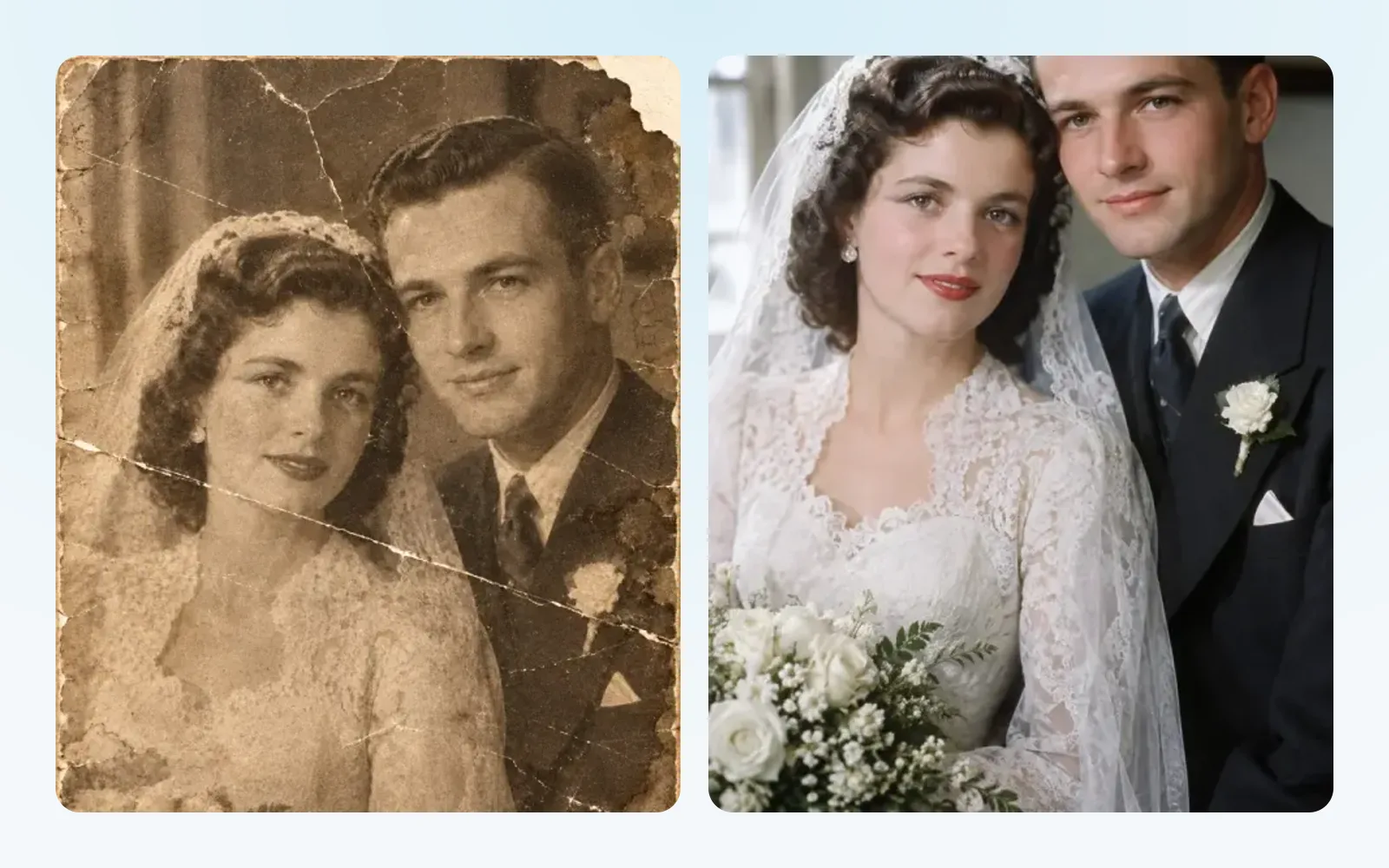
- Get a good copy of the photo. Scan it, or photograph it with your phone in daylight, straight on and without flash. The clearer the copy, the better the result.
- Upload it on chatmodel’s Image page. Open the Image page and add your photo. The “Try this” buttons above open it with the model and the message ready.
- Pick what you want to fix. Start with “full restoration”. Add color afterwards if you want it.
- Send it and look closely. Zoom in on the faces. They matter most.
- Ask for small changes. If something is off, say what: “keep the original background”, “less smooth skin”, “the colors are too bright”.
- Download your favorite. Keep the original too. It’s part of your family history.
Tips for the best results
One job at a time works better. For badly damaged photos, first ask to fix the scratches, then ask for color on the result.
Say what to keep. “Keep the faces exactly as they are” is the most useful sentence you can write.
Give it context for color. The decade, the country, and anything you remember, like “the car was red”.
Don’t overdo it. A restored photo should still look old. Ask it to keep the grain if the result looks too modern.
What to watch out for
AI fills in what it can’t see. On very damaged photos it may invent small details, like a button or a hairline. That’s fine for a frame on the wall, but it’s not a historical record. Look carefully before you print or share, and keep the original.
Nano Banana Pro is good at this kind of edit. Read more on the Nano Banana Pro page, or see how image models compare in the best AI image generator guide.